
Flowchart Maker
無料グラフと図表Type one step per line. A question needs a No path after "->"; Yes continues down. A written No action ends that branch. To connect to another step or draw a loop, give the target an ID such as "[review] Review" and write "-> @review". Inspect every connection in the data table before exporting.
- 正確な数値
- PNGでダウンロード
- アップロードなし
View flow data (5 rows)
Yes continues to the next step. A written No action ends that branch. @ references are actual jumps, including loops; a final question receives an automatic End step for Yes. This diagram describes your process; it does not execute it.
| Step | Continue / Yes | No |
|---|---|---|
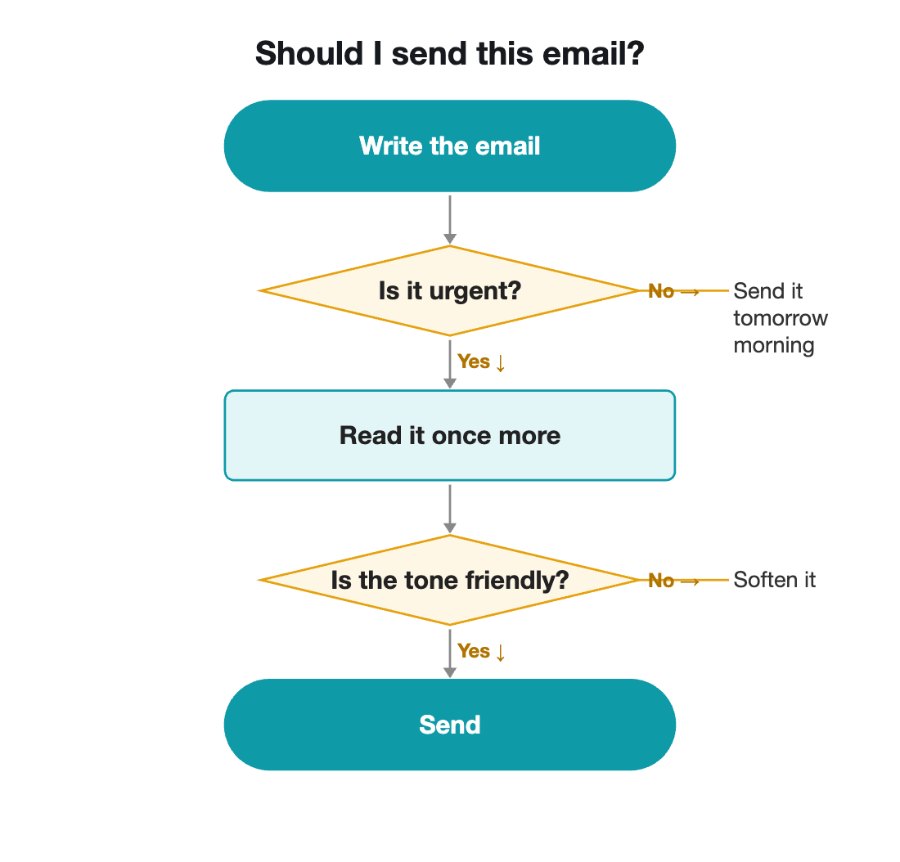
| 1. Write the email [draft] | 2. Is it urgent? | — |
| 2. Is it urgent? | 3. Read it once more | Send it tomorrow morning — end of branch |
| 3. Read it once more | 4. Is the tone friendly? | — |
| 4. Is the tone friendly? | 5. Send | 1. Write the email |
| 5. Send | End | — |
Flowchart Makerの使い方
- 01
Type each step on its own line. For decisions, write "Question? -> No action" or reference a named step.
- 02
Pick colors; the diagram redraws as you type.
- 03
Download it as a PNG.
どのような用途で使われるか
Work processes
Document how a request moves from start to finish.
Teaching
Show algorithms, science steps or decisions in class.
Planning
Think through a decision before you make it.
より良い結果を出すためのヒント
- Start each step with a verb: "Send", "Check", "Pay".
- End decisions with a question mark and supply a No action or @target.
- Put the No path after "->". A written action ends the branch; @step-id draws a connection.
- Use up to 24 steps. Zoom to inspect long charts and check the connection table.
FAQ
How do I add a "no" branch?
Write "Is it urgent? -> Send it tomorrow" for a terminal No action. Use "Is it correct? -> @review" to connect No to a step named [review]. A question at the bottom gets an automatic End destination for Yes.
Can it make a large flowchart?
Use up to 24 steps and 120 characters per label or No action, with a title up to 120 characters. The canvas grows vertically; Zoom preview shows readable detail. Split larger processes into several charts.
What do the shapes mean?
Rounded boxes mark start/end points and terminal No actions; rectangles are steps and diamonds are decisions. Yes continues down. A final decision gets an automatic End node for Yes.
Can it draw loops?
Yes. Name a step "[review] Review draft", then use "Approved? -> @review" to connect No back to it. A regular step can jump with "Revise draft -> @review". IDs are case-sensitive; unknown or duplicate IDs block export instead of drawing a misleading chart.
Is my diagram generated locally?
Your inputs are drawn in your browser, and the PNG is created locally. No diagram-generation API is used.
その他のツール
Bracket Maker
Make a printable single-elimination bracket for 2 to 64 teams.
Comparison Chart Maker
Compare products or plans in a table with check marks.
Family Tree Maker
Draw a family tree from an indented list of names and dates.
Gantt Chart Maker
Turn tasks with start and end dates into a Gantt chart.
Height Chart Maker
Line people up by height using centimeters, inches or decimal feet.
Funnel Chart Maker
Make a funnel chart that shows how many people reach each step.